> ## Documentation Index
> Fetch the complete documentation index at: https://docs.zopio.dev/llms.txt
> Use this file to discover all available pages before exploring further.
# Create an AI Chatbot
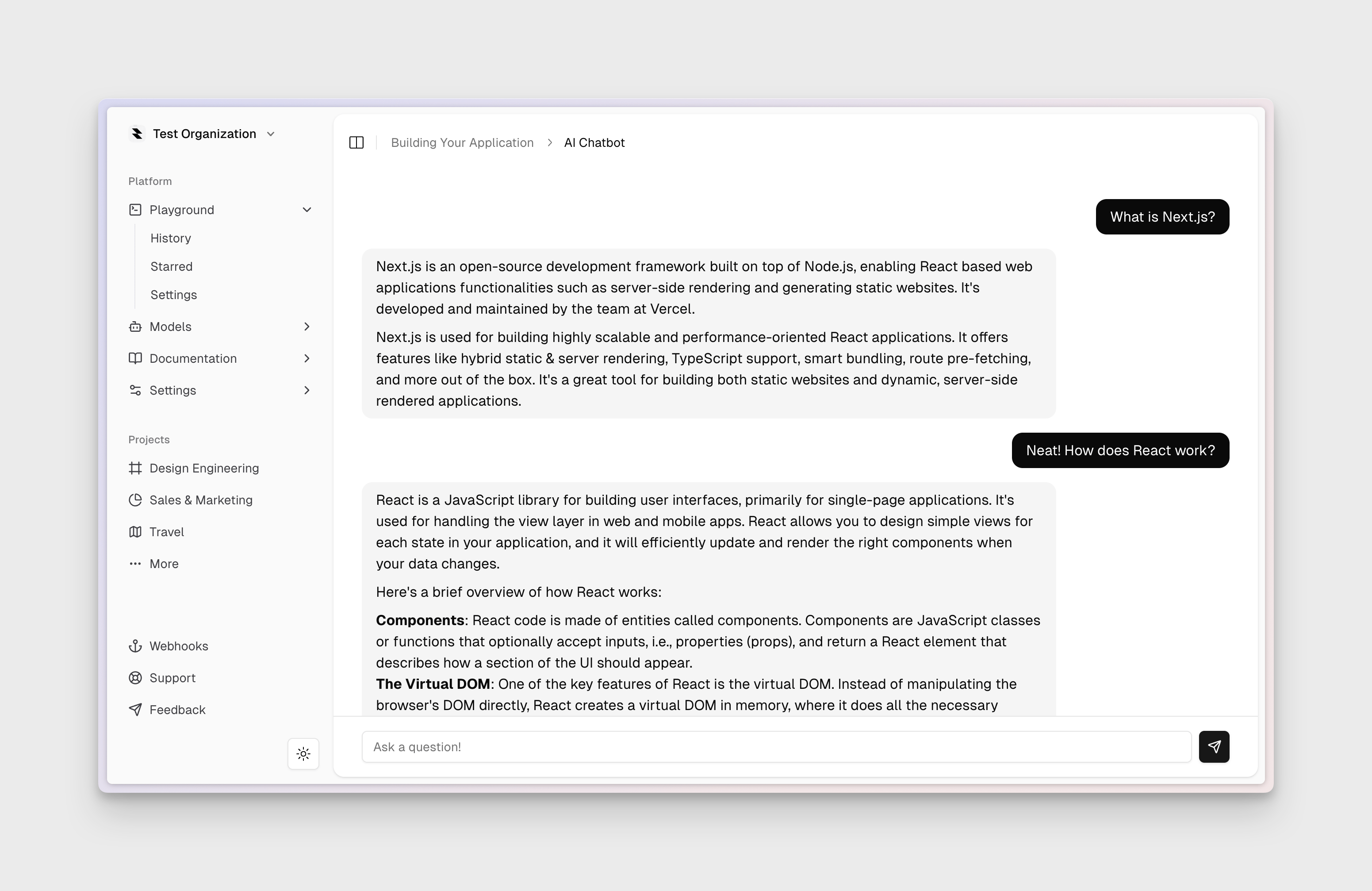
> Let's use `zopio` to create a simple AI chatbot.
Today we're going to create an AI chatbot using `zopio` and the built-in AI package, powered by [Vercel AI SDK](https://sdk.vercel.ai/).
 ## 1. Create a new project
```bash Terminal theme={"system"}
npx zopio@latest init ai-chatbot
```
This will create a new project with the name `ai-chatbot` and install the necessary dependencies.
## 2. Configure your environment variables
Follow the guide on [Environment Variables](/env) to fill in your environment variables.
Specifically, make sure you set an `OPENAI_API_KEY` environment variable.
Make sure you have some credits in your OpenAI account.
## 3. Create the chatbot UI
We're going to start by creating a simple chatbot UI with a text input and a button to send messages.
Create a new file called `Chatbot` in the `app/components` directory. We're going to use a few things here:
* `useChat` from our AI package to handle the chat logic.
* `Button` and `Input` components from our Design System to render the form.
* `Thread` and `Message` components from our AI package to render the chat history.
* `handleError` from our Design System to handle errors.
* `SendIcon` from `lucide-react` to create a send icon.
```tsx apps/app/app/(authenticated)/components/chatbot.tsx theme={"system"}
'use client';
import { Message } from '@repo/ai/components/message';
import { Thread } from '@repo/ai/components/thread';
import { useChat } from '@repo/ai/lib/react';
import { Button } from '@repo/design-system/components/ui/button';
import { Input } from '@repo/design-system/components/ui/input';
import { handleError } from '@repo/design-system/lib/utils';
import { SendIcon } from 'lucide-react';
export const Chatbot = () => {
const { messages, input, handleInputChange, isLoading, handleSubmit } =
useChat({
onError: handleError,
api: '/api/chat',
});
return (
## 1. Create a new project
```bash Terminal theme={"system"}
npx zopio@latest init ai-chatbot
```
This will create a new project with the name `ai-chatbot` and install the necessary dependencies.
## 2. Configure your environment variables
Follow the guide on [Environment Variables](/env) to fill in your environment variables.
Specifically, make sure you set an `OPENAI_API_KEY` environment variable.
Make sure you have some credits in your OpenAI account.
## 3. Create the chatbot UI
We're going to start by creating a simple chatbot UI with a text input and a button to send messages.
Create a new file called `Chatbot` in the `app/components` directory. We're going to use a few things here:
* `useChat` from our AI package to handle the chat logic.
* `Button` and `Input` components from our Design System to render the form.
* `Thread` and `Message` components from our AI package to render the chat history.
* `handleError` from our Design System to handle errors.
* `SendIcon` from `lucide-react` to create a send icon.
```tsx apps/app/app/(authenticated)/components/chatbot.tsx theme={"system"}
'use client';
import { Message } from '@repo/ai/components/message';
import { Thread } from '@repo/ai/components/thread';
import { useChat } from '@repo/ai/lib/react';
import { Button } from '@repo/design-system/components/ui/button';
import { Input } from '@repo/design-system/components/ui/input';
import { handleError } from '@repo/design-system/lib/utils';
import { SendIcon } from 'lucide-react';
export const Chatbot = () => {
const { messages, input, handleInputChange, isLoading, handleSubmit } =
useChat({
onError: handleError,
api: '/api/chat',
});
return (
{messages.map((message) => (
))}
);
};
```
## 4. Create the chatbot API route
Create a new file called `chat` in the `app/api` directory. This Next.js route handler will handle the chatbot's responses.
We're going to use the `streamText` function from our AI package to stream the chatbot's responses to the client. We'll also use the `provider` function from our AI package to get the OpenAI provider, and the `log` function from our Observability package to log the chatbot's responses.
```tsx apps/app/app/api/chat/route.ts theme={"system"}
import { streamText } from '@repo/ai';
import { log } from '@repo/observability/log';
import { models } from '@repo/ai/lib/models';
export const POST = async (req: Request) => {
const body = await req.json();
log.info('🤖 Chat request received.', { body });
const { messages } = body;
log.info('🤖 Generating response...');
const result = streamText({
model: models.chat,
system: 'You are a helpful assistant.',
messages,
});
log.info('🤖 Streaming response...');
return result.toDataStreamResponse();
};
```
## 5. Update the app
Finally, we'll update the `app/page.tsx` file to be a simple entry point that renders the chatbot UI.
```tsx apps/app/app/(authenticated)/page.tsx theme={"system"}
import { auth } from '@repo/auth/server';
import type { Metadata } from 'next';
import { notFound } from 'next/navigation';
import { Chatbot } from './components/chatbot';
import { Header } from './components/header';
const title = 'Acme Inc';
const description = 'My application.';
export const metadata: Metadata = {
title,
description,
};
const App = async () => {
const { orgId } = await auth();
if (!orgId) {
notFound();
}
return (
<>
);
};
export default App;
```
## 6. Run the app
Run the app development server and you should be able to see the chatbot UI at [http://localhost:3000](http://localhost:3000).
```sh Terminal theme={"system"}
pnpm dev --filter app
```
That's it! You've now created an AI chatbot using `zopio` and the built-in AI package. If you have any questions, please reach out to us on [Twitter](https://x.com/zopiolabs) or open an issue on [GitHub](https://github.com/zopiolabs/zopio).